How to Make Consistent AI Characters (What Actually Works)
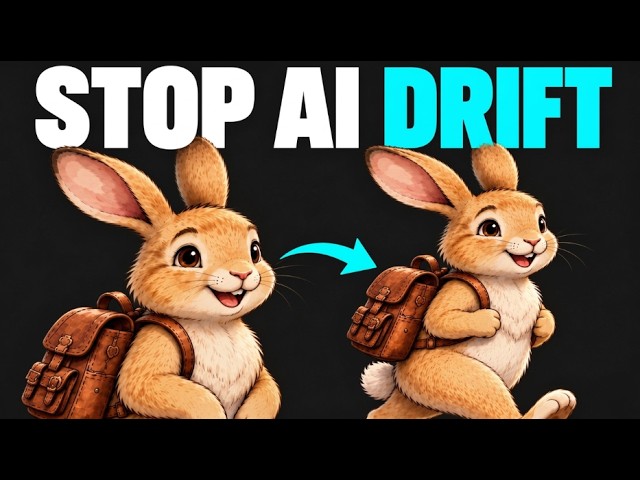
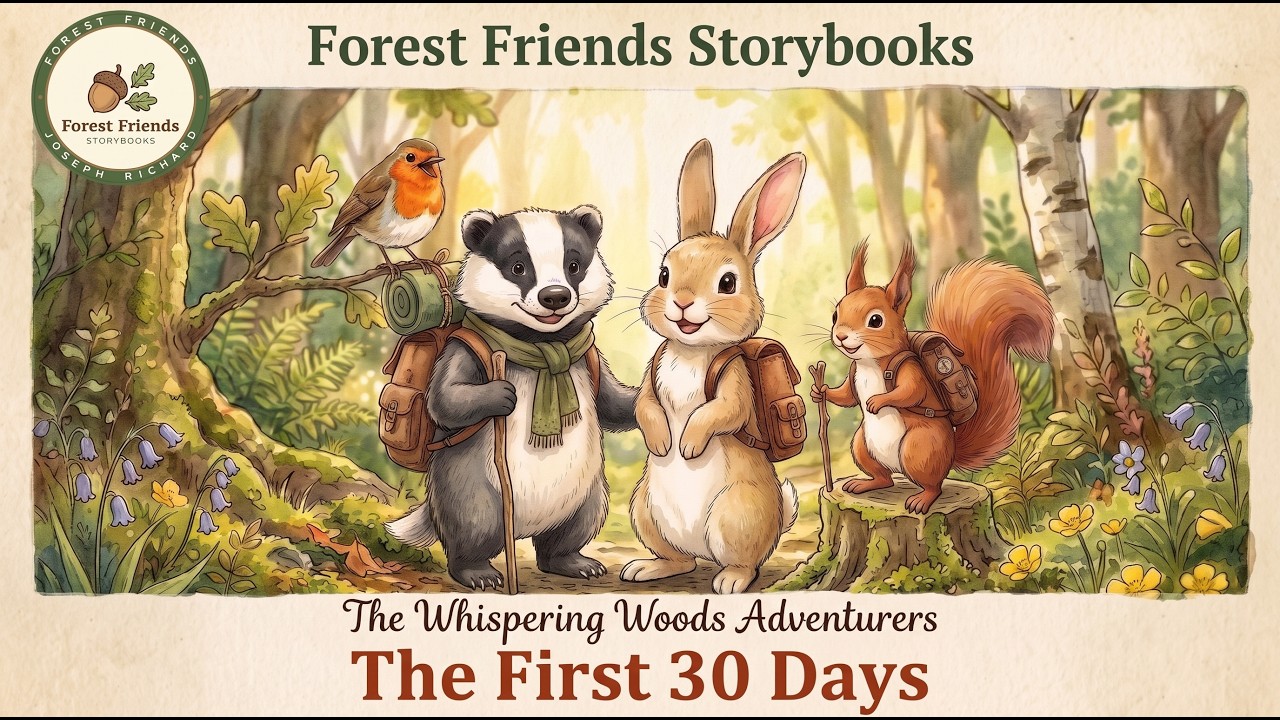
While turning my children's book, Meet the Forest Friends, into an animated series, the same AI character kept coming back with a different face. What fixed it wasn't a better prompt but a better process. I walk through that workflow in Google Flow on one real scene, including the edit that gave me an extra bunny.
Key takeaways
- The workflow is Define, Reference, Check.
- Define: write a character Bible that says what must stay the same.
- Reference: name your character and world images and reuse them as references in every scene.
- Check: review the still image before you add motion, and again after every edit.
- When something goes wrong, fix the smallest problem instead of regenerating the whole scene.
Chapters
- 0:00 Same character, different result
- 0:22 The change that helped
- 1:14 Decide what must stay the same
- 1:38 Turn the Bible into a reference
- 2:05 Reuse the character and the world
- 2:56 Check before animating
- 3:21 The scene that went wrong
- 3:47 Fix the smallest problem
- 4:13 Add motion to the checked scene
- 4:39 What the failures taught me
Tools used
Google Flow
Transcript
Read the full transcript(about 1050 words)
0:02Same character, same session, different face. I ran into this building my Forest Friends animation. In this video, I'll show you the character Bible and reference trick that fixed it for me. You would think repeating the character's name and description would keep it consistent. I thought so too.
0:17But then I would generate the next scene, and suddenly I was looking at a different version of the same animal. My first response was to keep adjusting the prompt, describe it again, add more detail, try it one more time. What helped was changing the process. I created a character Bible, gave myself a set of reusable references, and started checking the scene before I animated it. That didn't eliminate every problem, but it gave me something concrete to work from when the AI started being inconsistent. I'm Joseph Richard, I'm a software developer. On nights and weekends, I'm turning my children's book into an animated series with AI tools. If you're building something with AI too, subscribe and follow along. I'm going to show you the workflow I use in Google Flow. I define the character, I reuse references, and build the scene you can actually animate. We're going to be using animals walking down a woodland path as an example. I'll show you what happened when I asked for a simple change and ended up with an extra bunny. The character Bible is where I define what has to stay the same before I ask the AI to make another change. For each animal, I need a clear description of its visual style and appearance for the series. What makes it recognizable? Which details must stay the same? Those are the details I want written down. Otherwise, I might describe it one way today and a slightly different way tomorrow and then wonder why the results don't match.
1:38In my original workflow, I brought the Bible into the session and used it to generate the characters. Then I chose the images that matched my design. A good looking image isn't automatically the right reference. So this is a decision we're slowing down for. Choose the version you want to keep using, compare it with the Bible before you move on. But choosing the character is only part of it. What happens when you put that character somewhere else? Here's what I did in Flow. I named the character images, then used the add symbol to bring those characters into the prompt.
2:12I did that for the characters and the woodland setting too. A familiar character can feel out of place in a different world. These animals belong to the same series, so the woods needs a reference too. Now I had a starting point to start the scene. Next, I ask for characters together, walking down the path. Start with one clear action before complicating the scene. Check whether the characters survived the change of setting. Here's a prompt structure you can adapt. Use the selected character and woodland references. Show the animals walking along the path. Preserve their established designs.
2:46The references give you something to compare against. The prompt tells the tool what the scene needs to do, but getting an image back doesn't mean it's ready to animate. Before I animate anything I want to inspect the still image. Are these the same characters I selected?
3:02Are all of them present? Did an extra animal appear? Does the scene make sense? Compare it beside the reference. On its own a nice looking image can distract me from a changed face or missing detail. If it fails that check I want to fix it here. And I learned to check more than just the part I asked the AI to change. Here's why it matters. I had a scene with the animals around a bench, looking at a map. The bird was directing them, I asked to have the bunny talking about the map instead. It changed the scene, but it also left another bunny in the original position, with its ears missing.
3:36So now I had the bunny I wanted, and another bunny I definitely didn't ask for. The request to change happened, another part of the scene broke. If I had only checked who was talking, I would have missed it. In that case, I used the highlight tool to select the unwanted bunny and asked to remove it.
3:52That corrected the extra character. What I take from that is to inspect the whole scene after an edit, even when the main change looks right. Identify the specific problem before regenerating anything. For your project, that might be an extra character or one changed feature.
4:07Make the correction, then compare it again. Don't assume the correction left everything else untouched. Once I have a scene I'm happy with, I can move to animation. In the original recording, I used the animate option and got a short clip of the animals moving. For this scene, the action is simply walking along the path.
4:25That's enough to show where the image works in motion. Then I watch it back. Does the bunny still look like my bunny once it starts moving? A nice starting image only gets me so far, and sometimes getting that moving version was its own problem. Along the way, I had failed generations and attempts to adjust that processing. Sometimes it would spin, tell me things were cute, and still not animate the scene. Well, cute is nice, I need it to move. I cut those waits so we can focus on the useful results. Did it produce nothing or something that needs correcting?
4:58Identify the problem before trying again. Here's the walking scene that came back. Now I can put it beside the reference and judge the actual result. Does it still look like the character I chose? Does the movement fit what I wanted? This is where I decide whether the clip belongs in the project or needs another correction. If you're making your first character, start with this. Pick the design you want to keep, put it in one simple scene, and check it before adding motion. Then you can start building the story around it. But creating the characters is just one part of turning a children's book into something new. As I keep building Forest Friends, I'll show you what works and what I have to fix along the way.
From the video's captions, lightly cleaned up. Click a time to watch from that moment.