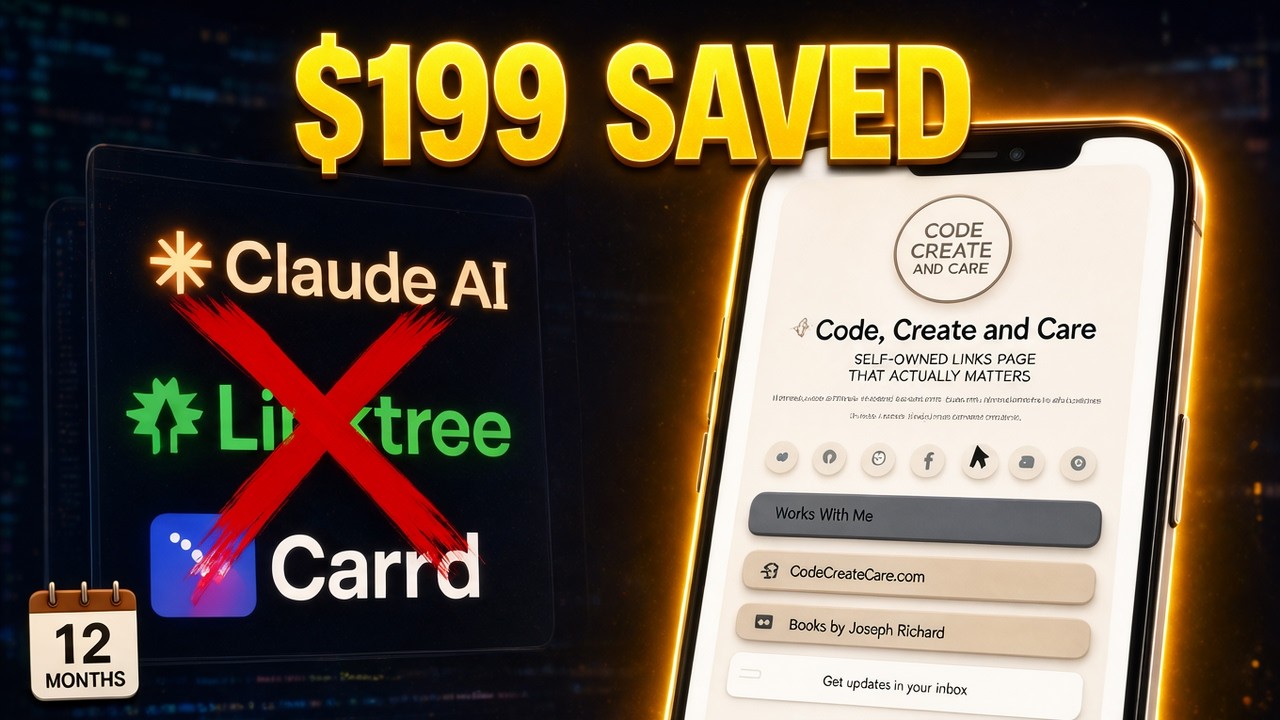
Update website with Claude Agent and Antigravity — here's the before and after.

My website was missing my videos, so I had Claude Code add them. Working inside Antigravity with the development server running, I add a featured video section and give my Media Kit PDF its own page, showing the actual prompts I typed and checking each result in the browser.
Key takeaways
- Describe the visitor's path: the content, the layout, and what each click should do.
- Then follow that path yourself in the browser to check the result.
- Check the layout on smaller screens, not just on your desktop.
- Start small, then add the next piece. Claude makes changes fast, but deciding what to ask for is still your job.
Chapters
- 0:00 Before and after: where I started
- 0:25 The decisions that matter
- 0:43 The plan and working setup
- 1:05 Asking for the video section
- 1:30 Checking the result
- 1:55 Testing the player and button
- 2:14 Adding my existing Media Kit
- 2:36 Requesting the new page
- 2:59 Following the visitor's path
- 3:24 Checking smaller screens
- 4:07 Start small, then add the next piece
Tools used
Claude Code, Antigravity, PDF.js
Transcript
Read the full transcript(about 750 words)
0:00My site was missing my videos, so I had Claude Code build it — here's the before and after. When you already have a website, adding a video sounds like a small job. Give Claude the link, ask for a player, and you’re done. That was my starting point too. But I also want the new section to look like it belongs on the site. The player is only one piece. Where does it go? What should the button do? What happens on a phone?
0:34And when I add another page, how will visitors find it and get back? Those are the decisions I’m going to put into my instructions, then check in the browser. I’ve got the project open and the development server running. First, I’ll add the featured video.
0:51Then I’ll give my existing Media Kit its own page, connect the links, and test both additions. You’ll see my actual prompts as I type, followed by the website changes worth looking at. Let’s start with the video. I’m giving Claude more than a YouTube link. I’m telling it where the section belongs, what text to use, and how the layout should work. On desktop, I want the explanation on the left and the video on the right. On mobile, they should stack. I’m also spelling out what the button should do.
1:24If you’re following along, those are the choices to make before you submit your request. Now I can compare the browser result with what I asked for. I’m checking the placement, the text, and the size of the player. I’m also looking at how the section meets the email signup below it. For your own site, this is a useful checkpoint: compare the result with your instructions before asking for another feature. Next, I’ll check what happens when someone clicks.
1:56I’m playing and pausing the embedded video, then checking the button separately. They have different jobs: one lets visitors watch here on the site, and the other opens YouTube. I want to test both. Now I’ll move from adding a section inside a page to adding a separate page.
2:15I already have my Media Kit, so I’m putting the existing files into the project. I’m using it as an example of content that needs its own page. Yours could be a brochure, a menu, or a portfolio. The task here is to display that content, matches the website, and gives visitors a clear and clean way to reach it. I’m specifying the page location, the files to use, and the navigation. I want a clear PDF download and a way back home. I’m also asking for a link from the homepage. That part is easy to overlook: creating a page doesn’t automatically give visitors a way to find it. Once Claude makes the changes, I’ll follow that path myself. Now I’m starting on the homepage and opening the Media Kit through its link. I’m checking the page order, the layout, and the Home button.
3:09Then I’m downloading the PDF and opening the downloaded file. That last step matters: the button needs to deliver the right document. For your site, follow the whole visitor journey, rather than checking each page in isolation. The desktop version is only one view. I’m narrowing the browser to check the video section, buttons, and new page. I’m looking for anything that runs off the screen or becomes awkward to use. If something needs changing, I can give Claude that specific problem.
3:41The point is to check the experience at the size the visitor will actually see. Here’s the visitor’s path: open the homepage, watch the featured video, or follow the link to the Media Kit and download it. That’s what I wanted these additions to do. When you give Claude a website task, describe that path — the content, the layout, and what each click should do — then test it in the browser. You don’t have to build every part of your website at once.
4:11Start with what you need, add the next useful piece, and check that it works. That’s what I’m doing here on Code, Create & Care. But what happens when someone visits and isn’t ready to take the next step? That’s why I added the email signup below this video section.
4:28Watch this video next to see how I built it and where the signup information goes.
From the video's captions, lightly cleaned up. Click a time to watch from that moment.